
Edit PDF Online – Free PDF Editor
Edit PDF text in the same font. Add signatures, images & more — 100% free.
Upload Your PDF to Edit
Drag & drop your PDF here, or click to browse your files
Add your signature
Add a stamp
Discard your changes?
You have edits that haven't been downloaded yet. Opening a new PDF will remove them.
How to Edit a PDF File Online for Free in 4 Easy Steps
Change the words in your PDF without retyping the whole document. Your edits look like they were always part of the file.
Upload Your PDF
Drag and drop your PDF into the box above, or click Choose PDF File. Files up to 25 MB and 100 pages are supported. The editor reads every line of text along with its font, size and colour.
Click Any Text and Type
Click a word, line or heading and type your changes. The original font is kept automatically. To move text, drag it — guide lines help you keep it straight.
Add What You Need
Use the toolbar to add new text, your signature, images, stamps, shapes, highlights or whiteout. Use the Manage tab to reorder, rotate or delete pages.
Download Your PDF
Click Download PDF, check the preview and save the file. Need another change? Click Back to editing — your edits are still there.
Watch: How to Edit a PDF for Free
See how to change text in the same font, sign and mark up a PDF on your phone, laptop or PC, step by step.
Edit PDF Text in the Same Font — Not a White Box on Top
Many online PDF editors only let you cover old text with a white box and type new words in a different font. Toolszu really changes the text inside your PDF, so nobody can tell it was edited.
Typical online editor
Invoice due date: 15 March 2027
- New words appear in a different font and size
- Old text is often still hidden underneath and can be copied
- The edit is easy to spot
Toolszu PDF Editor
Invoice due date: 15 March 2027
- Same font, size, colour and spacing as the original
- Old text is truly replaced — nothing hidden underneath
- Looks like the document was never changed
Everything You Need to Edit a PDF
One free PDF editor online for all your PDF editing — change text, sign, fill forms, mark up and organise pages.
Edit Existing PDF Text
Click any word, line or heading and type. The old text is really replaced, and your new words stay selectable and searchable.
Automatic Font Matching
The editor finds the font, size, colour and spacing of every line and uses the same font for your changes — no guessing needed.
Find & Replace
Search the whole PDF and replace one or every match of a word, name, date or price in a single click.
Sign Your PDF
Draw, type or upload your signature. Uploaded signatures get a clean, transparent background automatically.
Stamps
Add ready-made stamps like APPROVED, PAID, DRAFT, CONFIDENTIAL or RECEIVED — or design your own with colour, shape and date.
Fill Any Form
Type on any form, even non-fillable ones, and add a tick, cross, dot or today's date with one click.
Whiteout That Really Deletes
Text fully under a whiteout box is removed from the file — not just hidden. Switch it to black to redact private details.
Highlight & Mark Up
Highlight, underline or strike through text. Draw freehand with a pen or marker — great for reviewing and studying.
Shapes & Arrows
Add boxes, circles, lines and arrows with your choice of colour, fill, thickness and opacity. They stay sharp when printed.
Add Images & Logos
Insert a logo, photo or picture (JPG, PNG, WebP). Drag to place it and pull the corners to resize.
Move with Smart Guides
Drag text and objects anywhere. Guide lines snap to the page centre and other lines so everything stays neatly aligned.
Reorder, Rotate & Delete Pages
Drag pages into a new order, turn sideways pages the right way up, or remove pages you don't need.
See Your Changes Live, Right on the Page
What you see is what you get. Every edit appears on the page as you make it, so you always know exactly how your PDF will look.
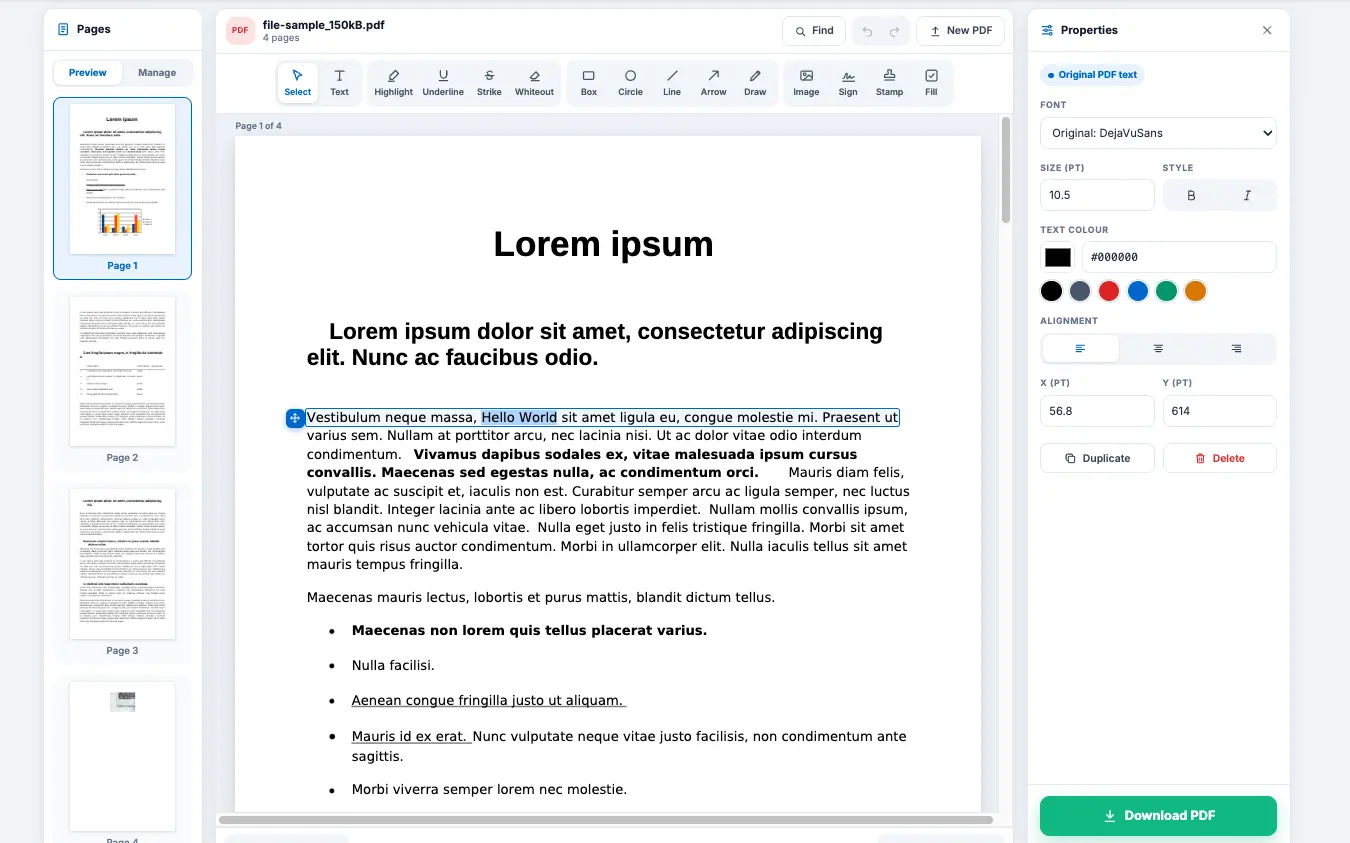
1. Toolbar
Tools are grouped into Edit, Mark up, Shapes and Insert, so everything is one click away — text, sign, stamp, image, highlight, whiteout and more.
2. Your Page
Click text to edit it, or drag anything to move it. Guide lines appear to help you line things up.
3. Properties Panel
Change size, colour, bold, italic and alignment of the selected text, or the colour and thickness of shapes.
Step-by-Step Visual Guide
A quick look at the tools you'll use most.
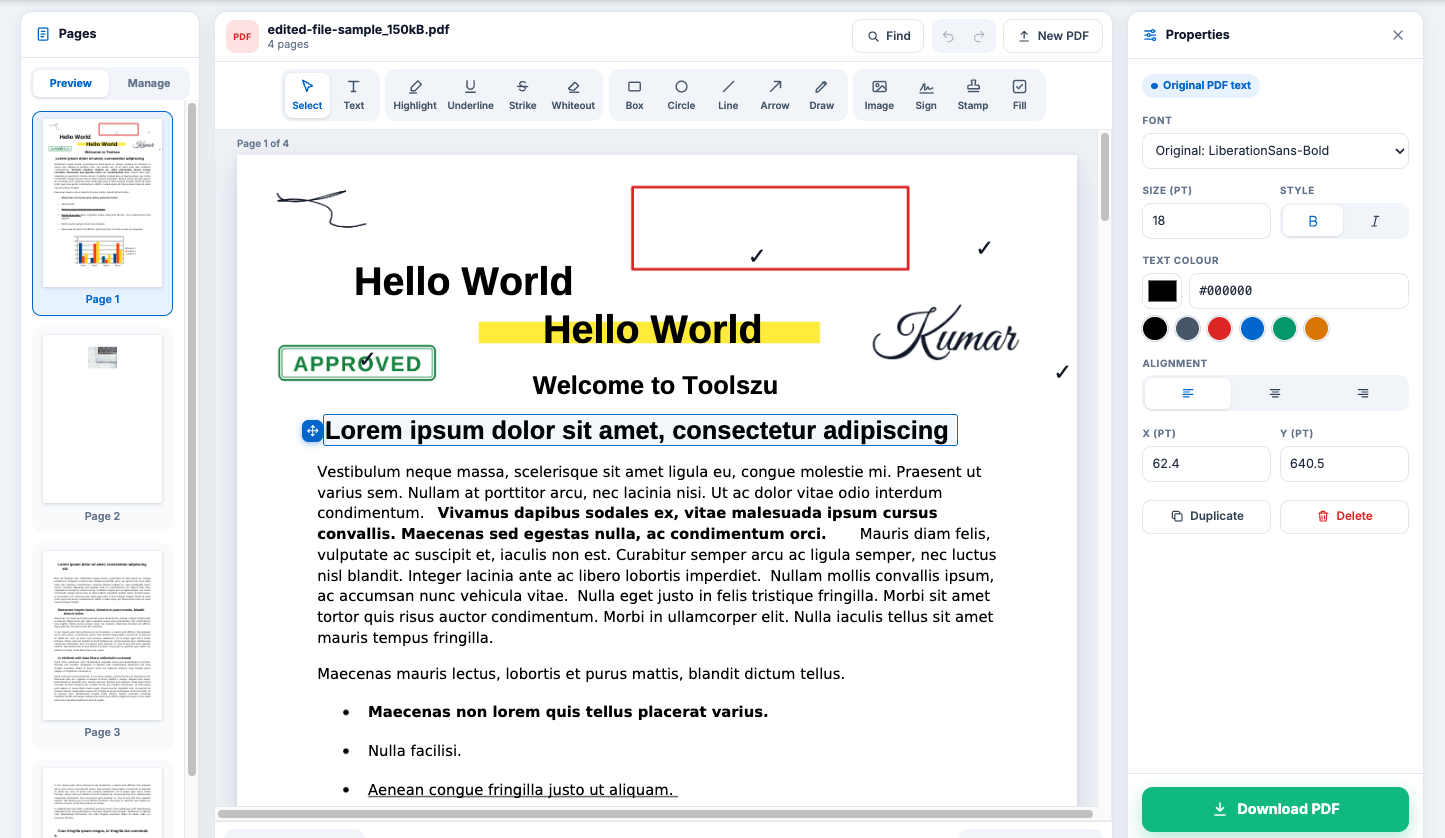
1. Edit Existing Text in the Same Font
Click any line and type. The Properties panel shows the font found in your PDF and keeps it for your new words. You can also change the size, colour, bold, italic and alignment.
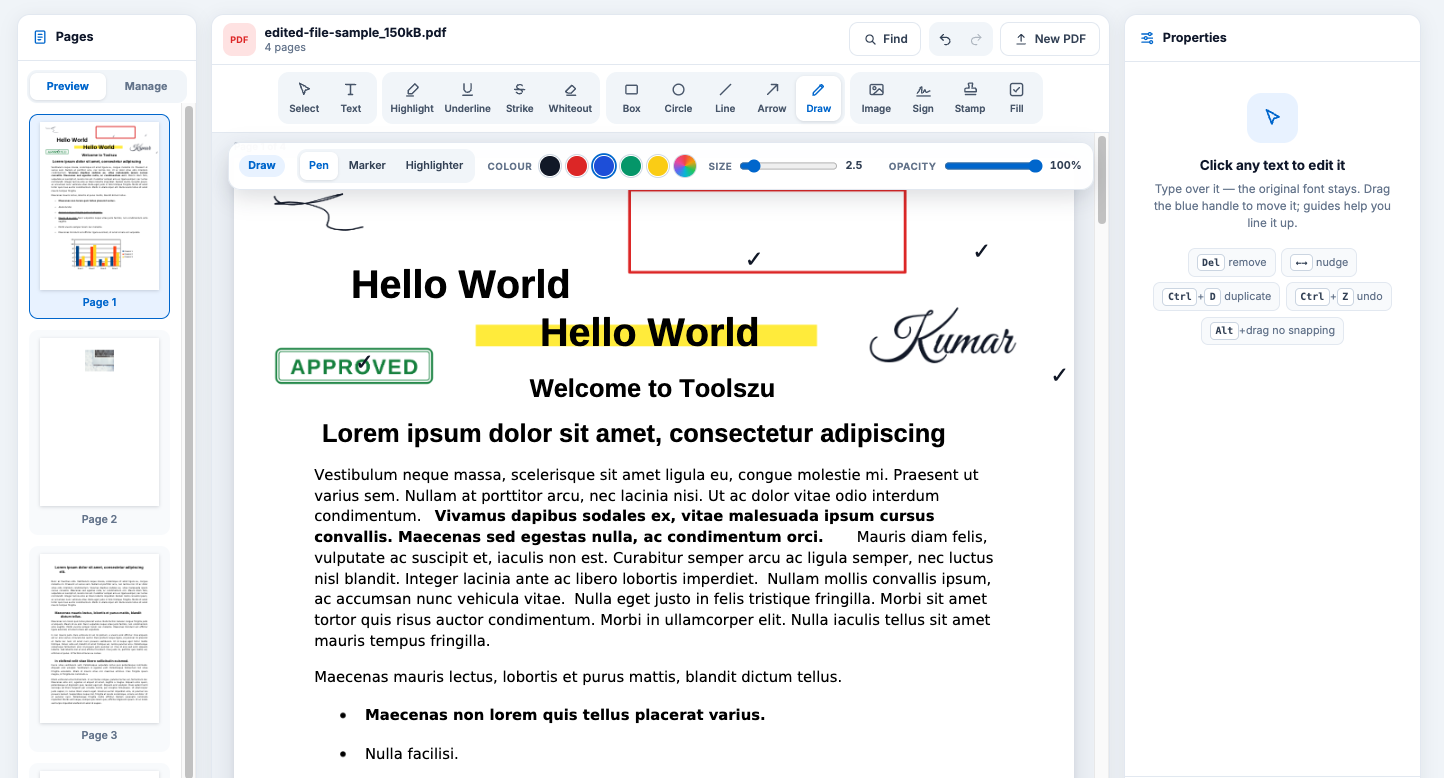
2. Draw, Highlight & Mark Up
Pick Draw to write freehand with a pen, marker or highlighter. Choose the colour, size and opacity, then add boxes, arrows, ticks or a stamp like APPROVED.
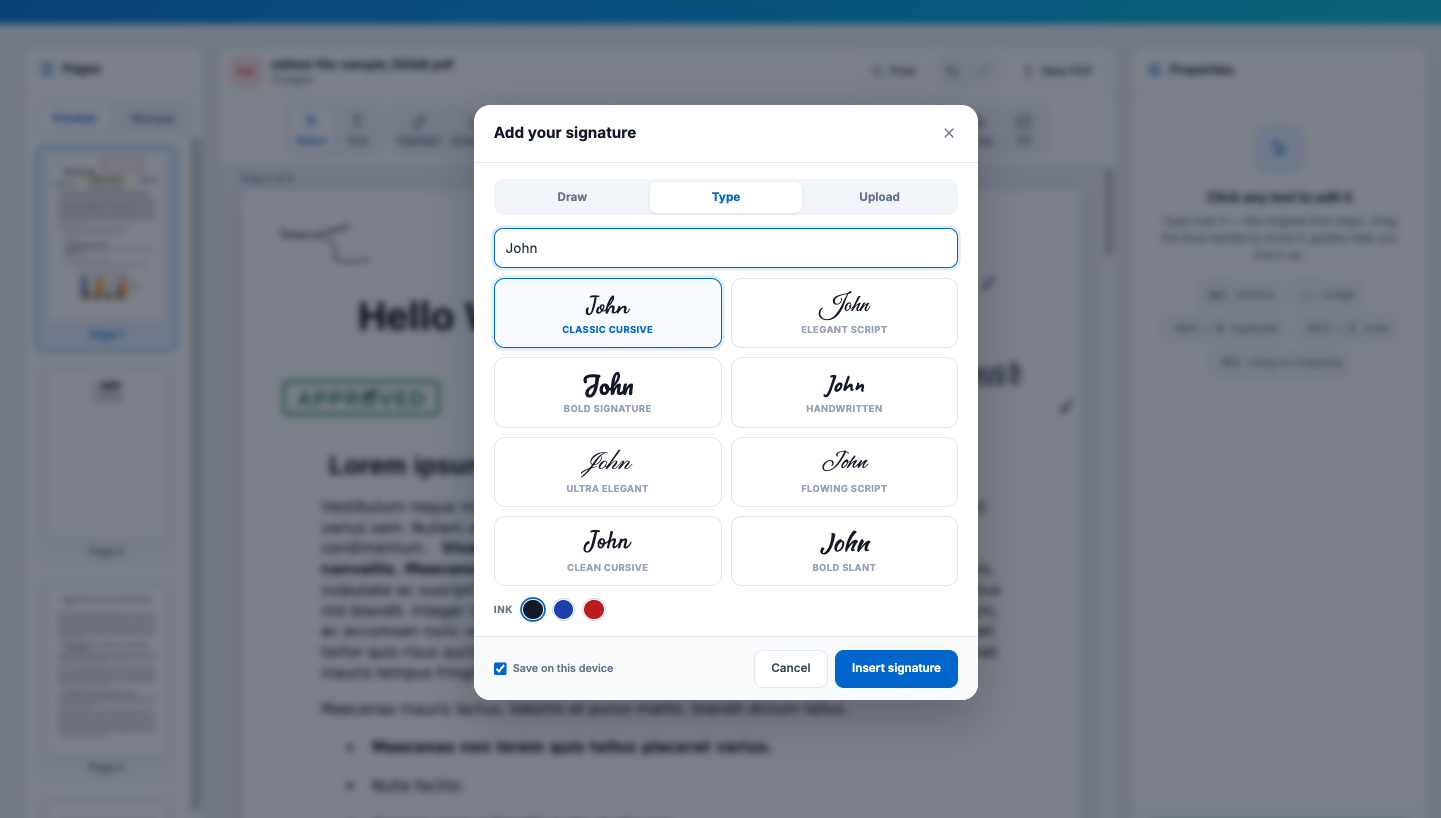
3. Add Your Signature
Click Sign and draw, type or upload your signature. Typed signatures come in 8 handwriting styles and 3 ink colours — and you can save it on your device for next time.
What Can You Do with a Free PDF Editor?
Fix a mistake in seconds instead of going back to the original Word file — or when you don't have it at all.
Update Your Resume / CV
Fix a typo, change your phone number or add a new job to your resume PDF — in the same font, without the original file.
Correct Your Invoices & Quotes
Update a date, price, address or client name on your own invoices and quotations, then stamp them PAID or APPROVED.
Sign Contracts & Agreements
Add your signature, initials and today's date to rental agreements, offer letters and contracts in under a minute.
Fill Application Forms
Type into job, visa, school or admission forms — even scanned or non-fillable ones — and tick the right boxes.
Study & Review Documents
Highlight important lines, underline key points and add notes to e-books, research papers and lecture notes.
Update Menus & Price Lists
Change prices, dishes or opening hours on your restaurant menu, brochure or price list and share the updated PDF.
Toolszu vs. Other Online PDF Editors
Why people switch to Toolszu to edit PDF files online.
| Feature | Toolszu PDF Editor | Many Other Online Editors |
|---|---|---|
| Edit existing text | Yes, text is truly replaced | Often a white box with new text on top |
| Same font as the original | Detected and matched automatically | Pick from a few basic fonts |
| Find & Replace | Included free | Rare, or paid only |
| Whiteout | Removes the text underneath | Only covers it — text can still be copied |
| Watermark on your file | Never | Sometimes on free plans |
| Sign-up | Not needed | Often needed after a few tasks |
| Price | 100% free | Free with limits, then a subscription |
Edit PDF on Any Device — No App Needed
Our PDF editor runs in your web browser, so there's nothing to download or install.
Windows
Chrome, Edge or Firefox — no Adobe Acrobat needed.
Mac
Works in Safari and Chrome — no extra software needed.
iPhone & iPad
Open in Safari, tap the text and type.
Android
Edit and sign PDFs on your phone in Chrome.
Tips for Perfect PDF Edits
- Text won't select? The page is a scan or picture. Cover the old words with Whiteout, then type the new words with Add Text.
- Same change many times? Use Find & Replace (Ctrl+F) to update a name, date or amount on every page at once.
- Keep headings centred: select the heading and choose Keep centre, so it stays in the middle when your new text is longer or shorter.
- Cleaner signature: sign in dark ink on plain white paper before taking a photo — the background is removed automatically when you upload it.
- Redacting private details? Use Whiteout (set it to black if you like), not a shape. Whiteout deletes the text underneath, a shape only hides it.
Frequently Asked Questions
Quick answers to the most common questions about editing PDF files online.
Upload your PDF to this page, click the text you want to change and type. You can also add new text, a signature, images or stamps from the toolbar. When you're done, click Download PDF. It's free, with no sign-up and no watermark on your file.
Click Text in the toolbar, then click anywhere on the page and start typing. You can drag the text box to move it and change the font, size and colour in the Properties panel. It's perfect for adding notes, names, dates or answers to a form.
Yes. This is what makes our editor different. Click any line of text and type over it — the old words are really replaced, not hidden under a white box. Your new text stays selectable and searchable like the rest of the document.
Yes, in most cases. The editor detects the font, size, colour and spacing used in your PDF and writes your changes in that same font. If the PDF doesn't include a letter you type, a matching font with the same look and width is used, so the line still looks natural.
A scanned PDF is a photo of a page. In that case the "text" is really a picture, so there are no words to select. You can still change it: use Whiteout to cover the old words, then use Add Text to type the new ones on top.
You don't need to convert anything. Just upload your PDF here and its text becomes editable straight away — click any line and type. If your PDF is a scan, use Whiteout and Add Text, or convert it with our PDF to Word tool.
Click the text and delete it with the Backspace or Delete key. To clear a bigger area, draw a Whiteout box over it. Any text completely covered by whiteout is removed from the file, so it can't be copied or found with search later.
Draw a Whiteout box over the text, then change its colour to black in the Properties panel. The text underneath is permanently removed from the file, not just covered, so nobody can copy or uncover it later.
Click Highlight in the toolbar and drag over the words you want to mark. Pick any colour you like. In the same place you'll find Underline and Strikethrough, plus a pen and marker for drawing freehand.
Use Find & Replace (Ctrl+F). Type the word you're looking for, type the new word, then replace one match at a time or all of them in one click. It's perfect for updating a name, date or price across the whole document.
Yes. Click the text and use the Properties panel. Keep the original font or switch to Arial / Helvetica, Times New Roman, Courier New and more, and change the size, colour, bold, italic and alignment. You can also choose to keep the left edge, centre or right edge fixed, so headings stay neatly lined up when the text gets longer or shorter.
Upload the form and use Add Text to type on any line or box — it works even on forms that have no fillable fields. The form tools also let you add a tick ✓, cross ✗, dot or today's date with one click.
Click Sign in the toolbar. You can draw your signature with your mouse or finger, type your name in a handwriting style, or upload a photo of your signature — the paper background is removed automatically. Then drag it into place and resize it.
No. Only the text you change is touched. Everything else — other text, images, tables, logos and backgrounds — stays exactly where it was.
Yes. Your file is sent over a secure, encrypted connection, is never shared with anyone, and is deleted automatically within about one hour. Your original file on your device is never changed.
Yes — this one. Toolszu is 100% free, with no sign-up or login, no premium version, no daily trial and no Toolszu watermark or logo added to your PDF.
The best free PDF editor lets you change the existing text (not just add new text on top), keeps the original font, and doesn't add a watermark or ask you to sign up. Toolszu does all of this in your browser, along with signatures, stamps, form filling, whiteout and page tools.
Yes. This editor works right in your web browser, so you don't need Adobe Acrobat or any other software. It works on Windows, Mac, Linux and Chromebook.
Yes. Open this page in Safari or Chrome on your Mac, or in Chrome or Edge on Windows and Chromebook, and upload your PDF. There's nothing to install — no Acrobat, no browser extension — and you can edit the existing text, not just add notes like in Preview.
Yes. Open this page in Safari, Chrome or any mobile browser and upload your PDF. Tap text to edit it, drag to move it, and use the toolbar to add text, signatures and stamps. No app download is needed.
Open the Manage tab in the Pages panel on the left. Drag pages into a new order, use ⟳ to rotate a page and ✕ to delete it. The changes are applied when you download.
Yes. Use Undo and Redo (Ctrl+Z / Ctrl+Y) as many times as you need. After downloading, click Back to editing — all your changes are still there and you can download again.
If your PDF asks for a password when you open it, unlock it first with our free Unlock PDF tool (you'll need the password), then upload the unlocked file here.
You can edit PDFs up to 25 MB and 100 pages. Images you add can be up to 8 MB each. If your file is bigger, use Compress PDF or Split PDF first.
English and other languages that use the Latin alphabet (such as Spanish, French, German, Portuguese and Indonesian) are fully supported, along with common symbols like ₹, € and ✓. Support for Hindi, Bengali and other Indian scripts is coming soon.
Yes. Like those tools, Toolszu lets you edit PDFs online. On top of that, you can change the existing text in its original font, use Find & Replace, whiteout that truly removes text, signatures, stamps and page tools — all free, with no sign-up and no watermark.
Related Free PDF Tools
Sign PDF Online
Add e-signatures to PDF documents
Watermark PDF
Add a text or logo watermark
PDF to Word
Convert PDF to an editable Word file
Compress PDF
Reduce PDF file size online
Merge PDF
Combine multiple PDFs into one
Split PDF
Extract pages or split a PDF
Unlock PDF
Remove a PDF password
Protect PDF
Add a password to your PDF
PDF to JPG
Convert PDF pages to images
Ready to Edit Your PDF?
Change text in the same font, sign, fill and fix your PDF in minutes. Free, with no sign-up and no watermark.
Upload PDF Now