
Toolszu

Follow Us

Create a Download Button with Timer (Count Down) HTML CSS & JavaScript

Create a Download Button with Timer (Count Down) HTML CSS & JavaScript

Dec 31, 2025 180 views

Create a Download Button with Countdown Timer (HTML, CSS & JavaScript)

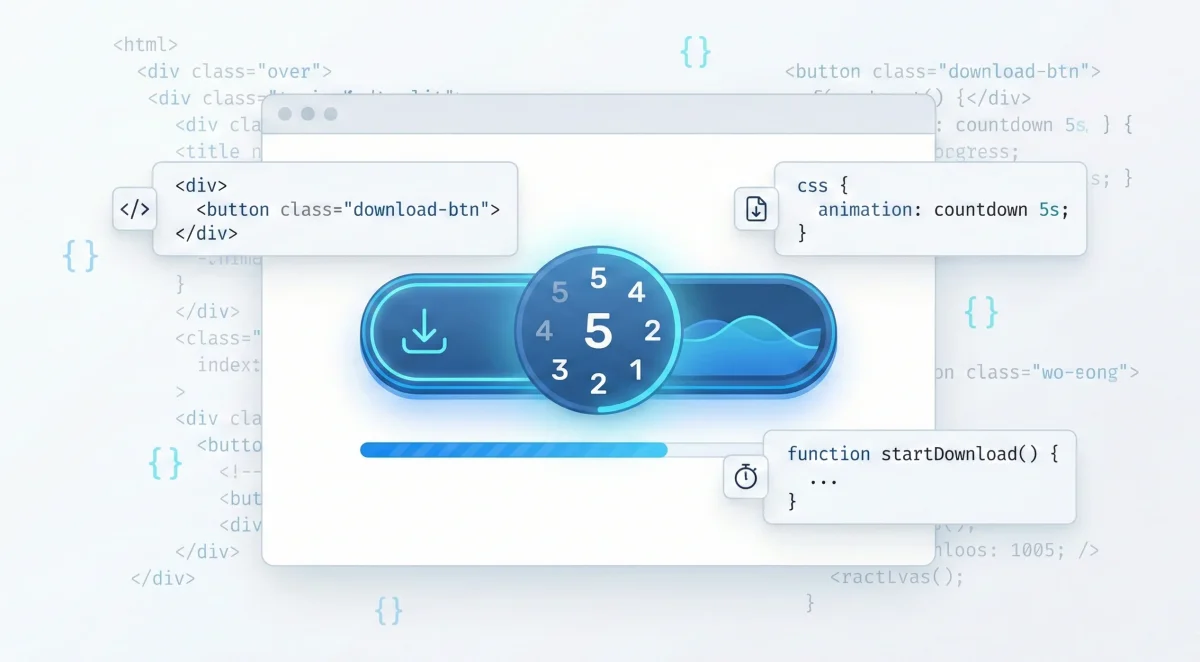
Adding a download countdown timer before allowing users to download a file improves engagement, prevents accidental clicks, and adds a professional touch to your website.

In this tutorial, you’ll learn how to create two types of download countdown buttons using pure HTML, CSS, and JavaScript:

✅ Download button with modern progress bar

✅ Download button without progress bar (lightweight)

Both methods work perfectly in WordPress, Blogger, or any HTML-based website.

Method 1: Download Countdown with Modern Progress Bar

This version shows a visual progress bar that fills as the timer runs, giving users a better experience.

🔹 Features

  • Animated progress bar

  • Countdown timer (seconds)

  • Download button appears automatically

  • Fully customizable

  • No external libraries required

Code Example (With Progress Bar)

 
<!DOCTYPE html> <html lang="en"> <head> <meta charset="UTF-8"> <meta name="viewport" content="width=device-width, initial-scale=1.0"> <title>Download Countdown with Progress Bar</title> <style> body { font-family: Arial, sans-serif; text-align: center; margin-top: 50px; } #progress-container { width: 80%; height: 25px; background-color: #e0e0e0; border-radius: 12px; overflow: hidden; margin: 20px auto; display: none; position: relative; } #progress-bar { width: 0%; height: 100%; background-color: #007bff; transition: width 1s linear; } #progress-text { position: absolute; width: 100%; top: 50%; transform: translateY(-50%); color: #fff; font-weight: bold; } #download-btn, #actual-download-btn { padding: 10px 20px; font-size: 18px; border-radius: 5px; cursor: pointer; border: none; color: #fff; } #download-btn { background: #007bff; } #actual-download-btn { background: #28a745; display: none; } </style> <script> function startCountdown() { const progressBox = document.getElementById("progress-container"); const bar = document.getElementById("progress-bar"); const text = document.getElementById("progress-text"); const startBtn = document.getElementById("download-btn"); const downloadBtn = document.getElementById("actual-download-btn"); let time = 15; const total = time; startBtn.style.display = "none"; progressBox.style.display = "block"; const timer = setInterval(() => { if (time <= 0) { clearInterval(timer); progressBox.style.display = "none"; downloadBtn.style.display = "inline-block"; } else { bar.style.width = ((total - time + 1) / total) * 100 + "%"; text.textContent = time + "s"; time--; } }, 1000); } </script> </head> <body> <div id="progress-container"> <div id="progress-bar"> <span id="progress-text">15s</span> </div> </div> <button id="download-btn" onclick="startCountdown()">Start Download</button> <a id="actual-download-btn" href="https://google.com" target="_blank">Download Now</a> </body> </html>

Method 2: Download Countdown Without Progress Bar

This is a lightweight version suitable for fast-loading websites.

🔹 Features

  • Simple countdown text

  • Minimal design

  • Faster loading

  • Easy to customize

 Code Example (Without Progress Bar)

 
<!DOCTYPE html> <html lang="en"> <head> <meta charset="UTF-8"> <meta name="viewport" content="width=device-width, initial-scale=1.0"> <title>Download Countdown</title> <style> body { font-family: Arial, sans-serif; text-align: center; margin-top: 50px; } #countdown { font-size: 24px; margin: 20px 0; display: none; } button { padding: 10px 20px; font-size: 18px; border-radius: 5px; border: none; cursor: pointer; } #download-btn { background: #007bff; color: #fff; } #actual-download-btn { display: none; background: #28a745; color: #fff; } </style> <script> function startCountdown() { let time = 15; const text = document.getElementById("countdown"); const startBtn = document.getElementById("download-btn"); const downloadBtn = document.getElementById("actual-download-btn"); startBtn.style.display = "none"; text.style.display = "block"; const timer = setInterval(() => { if (time <= 0) { clearInterval(timer); text.style.display = "none"; downloadBtn.style.display = "inline-block"; } else { text.innerText = "Your download will start in " + time + " seconds..."; time--; } }, 1000); } </script> </head> <body> <p id="countdown">Your download will start in 15 seconds...</p> <button id="download-btn" onclick="startCountdown()">Start Download</button> <a id="actual-download-btn" href="https://google.com" target="_blank">Download Now</a> </body> </html>

How to Use in WordPress

  1. Open Post or Page Editor

  2. Add Custom HTML block

  3. Paste the code

  4. Replace

     
    https://google.com

    with your actual download link

  5. Change countdown time if needed (15 seconds)

✅ Works with:

  • Gutenberg Editor

  • Elementor (HTML widget)

  • Classic Editor

Conclusion

Both countdown methods are useful depending on your needs:

Progress bar version – Best for professional websites
Simple countdown – Best for fast-loading pages

You can use these for:

  • File downloads

  • Software downloads

  • Lead magnets

  • Landing pages

  • Resource pages

Share this article