
How to Reduce PDF File Size Without Losing Quality (2026 Guide)
If you've ever tried to email a PDF only to get hit with an "attachment too large" error — you're not alone. It's one of the most common file frustrations people deal with every day, whether you're a student submitting an assignment, a freelancer sending a proposal, or a professional sharing reports.
The good news? Reducing PDF file size is quick, easy, and you don't need to be tech-savvy to do it. In this guide, I'll walk you through exactly why PDFs get so large, and the most effective ways to shrink them — without turning your crisp document into a blurry mess.
Why Is My PDF So Large?
Before jumping into solutions, it helps to understand what's actually causing the bloat.
High-resolution images are the number one culprit. When a PDF contains photos, scanned pages, or embedded graphics, the file size jumps dramatically. A single full-quality scanned page can be several megabytes on its own.
Embedded fonts are another hidden size-inflator. Many PDFs embed entire font files to ensure the document looks identical on every device. If the document uses multiple typefaces, this adds significant weight to the file.
Scanned documents are particularly heavy. When you scan a physical document, each page is saved as an image — not as searchable text — which makes the file much larger than a regular typed document.
Poor export settings also play a role. Many applications default to maximum quality when exporting to PDF, prioritising appearance over file size. Unless you manually adjust these settings, you'll often end up with a larger file than you actually need.
The Fastest Way to Reduce PDF File Size
For most people, the quickest and most hassle-free solution is using an online PDF compression tool. No software installation, no technical steps — just upload, compress, and download.
You can use the PDF compression tool on Toolszu to reduce your document size directly in the browser. It takes seconds, and you don't need to create an account.
Here's how it works:
Step 1 — Upload your PDF Open the tool and either click to browse your files or drag and drop your PDF directly onto the page.
Step 2 — Let it compress The tool automatically analyses your document — reducing image resolution, stripping unnecessary font data, and cleaning up file structure — to produce the smallest possible file without compromising readability.
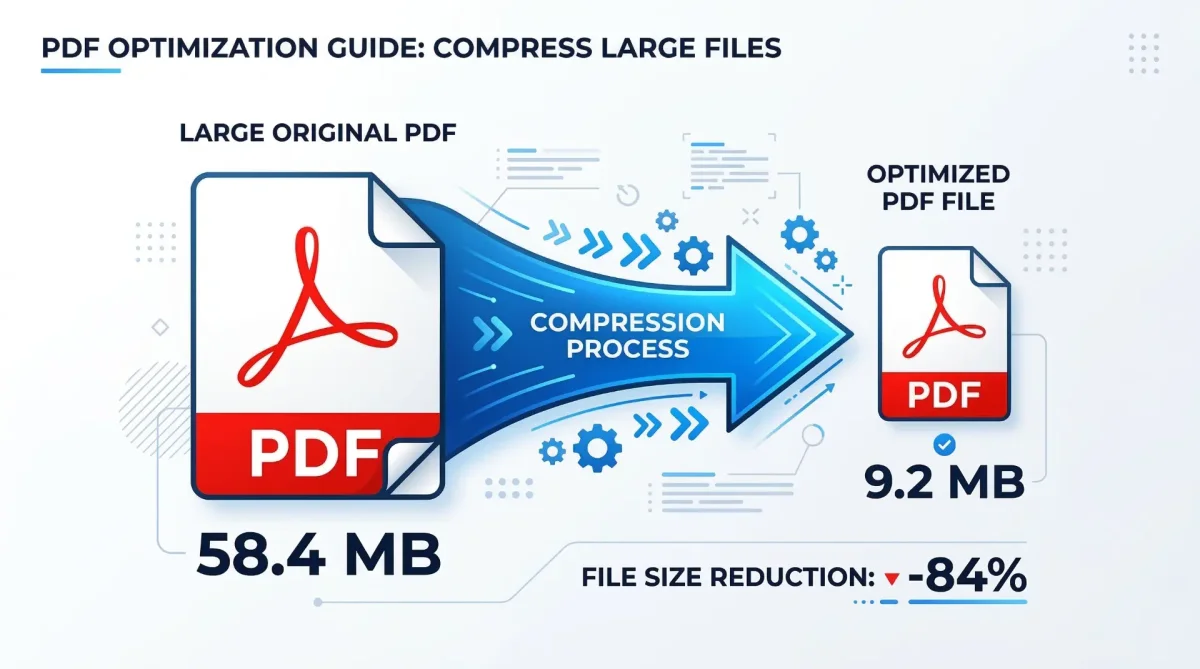
Step 3 — Download your optimised file Within a few seconds, your compressed PDF is ready. Depending on your original file, you can typically expect a size reduction of anywhere between 40% and 85%.
That's genuinely it. No complicated settings, no confusing menus.
Other Effective Methods to Shrink a PDF
If you want more control over the process, or you're dealing with a particularly large file, here are a few additional approaches worth knowing about.
Reduce image resolution inside the PDF Images don't need to be print-quality to look perfectly sharp on a screen. Downsampling images from 300 DPI to 96 or 150 DPI can dramatically reduce file size, especially in image-heavy documents, without any noticeable drop in on-screen quality.
Remove unnecessary pages This sounds obvious, but it's often overlooked. If your PDF has blank pages, duplicate sections, or content you don't actually need to share, deleting those pages before compressing can make a significant difference. Some online tools let you reorganise or remove pages before you compress — it's worth doing both.
Use OCR on scanned documents If your PDF is a scanned document, consider running it through an OCR (Optical Character Recognition) tool first. This converts image-based pages into actual text, which is far lighter in terms of file size and also makes the document searchable.
Optimise font embedding Professional PDF editors like Adobe Acrobat or Nitro PDF allow you to optimise font embedding — retaining only the characters actually used in the document rather than the entire font file. For documents using multiple typefaces, this can recover a surprising amount of space.
Split large documents If you're working with a very large multi-section document, consider splitting it into smaller files. Five 8MB files are far easier to handle, upload, and share than one 40MB file — and you can compress each part individually for better results.
Does Compressing a PDF Affect Quality?
This is the question most people have, and the honest answer is: it depends on the tool and the compression level you choose.
A good compression tool uses what's called lossless compression for text and structural data — meaning nothing important is removed, just reorganised more efficiently. For images, a small reduction in resolution is usually applied, but the difference is typically invisible unless you're comparing side-by-side at high zoom.
The key is choosing a reliable tool and, where possible, using a moderate compression setting rather than the most aggressive one. You want a smaller file — not a document that's hard to read.
When Should You Compress a PDF?
Here are the most common situations where compressing makes practical sense:
- Your email provider rejects the attachment due to size limits (Gmail, for example, caps attachments at 25MB)
- A website or portal has a maximum upload size
- You're storing large numbers of documents in cloud storage and want to reduce costs
- You're embedding a PDF on a website and want it to load quickly for visitors
- You're sharing files via messaging apps like WhatsApp or Telegram that impose their own limits
In short — if a file is causing friction when you try to share or store it, compressing it is almost always the right call.
Frequently Asked Questions
Can I compress a PDF without losing text quality? Yes. Text is typically compressed losslessly, so the readability remains exactly the same. Only image quality may see a minor reduction, and even then, it's usually negligible for everyday use.
Is it safe to compress a PDF using an online tool? As long as you're using a reputable tool, yes. Look for tools that process files over HTTPS and automatically delete uploaded files after processing. Avoid uploading sensitive or confidential documents to tools you haven't verified.
How much can I reduce a PDF file size? It varies depending on the content. Image-heavy PDFs can often be reduced by 60–85%. Text-only documents see less dramatic reductions — typically 10–30% — because there's simply less data to compress.
Can I compress a PDF on my phone? Absolutely. Most modern online compression tools are fully responsive and work in mobile browsers on both iOS and Android. No app download required.
Will the compressed PDF still be printable? Yes. Compression optimises the file for digital use but doesn't remove print compatibility. Your document will still print cleanly.
Final Thoughts
Dealing with oversized PDFs doesn't have to be a headache. Whether you're trying to meet an email attachment limit, speed up a document upload, or just keep your storage tidy — compressing your PDF is a simple, two-minute fix.
For most everyday use cases, an online tool is all you need. Upload your file, compress it, download it — done. If you work with PDFs regularly, it's worth bookmarking a reliable compressor so it's always within reach.
Try the PDF compression tool on Toolszu and see how much smaller your file can get.