
Advanced PDF Watermark Editor: Add Text & Logo Watermarks Online
Table of Contents
- What Is an Advanced PDF Watermark Editor?
- Why Add a Watermark to a PDF?
- Key Features of the Advanced PDF Watermark Editor
- Position Your Watermark Precisely
- Apply Watermarks to Specific PDF Pages
- Navigate and Review Multi-Page PDFs
- Zoom In and Out for Better Accuracy
- How to Watermark a PDF Online
- Is PDF Watermarking Secure?
- When Should You Use a PDF Watermark?
- Watermarking and PDF Compression
- Tips for Creating a Professional Watermark
- Frequently Asked Questions
- Conclusion
PDF files are widely used for bank statements, business reports, contracts, invoices, ebooks, presentations, certificates, and other important documents. But when these files are shared, it can be difficult to communicate ownership, confidentiality, or document status clearly. Adding a watermark is a simple way to solve this problem.
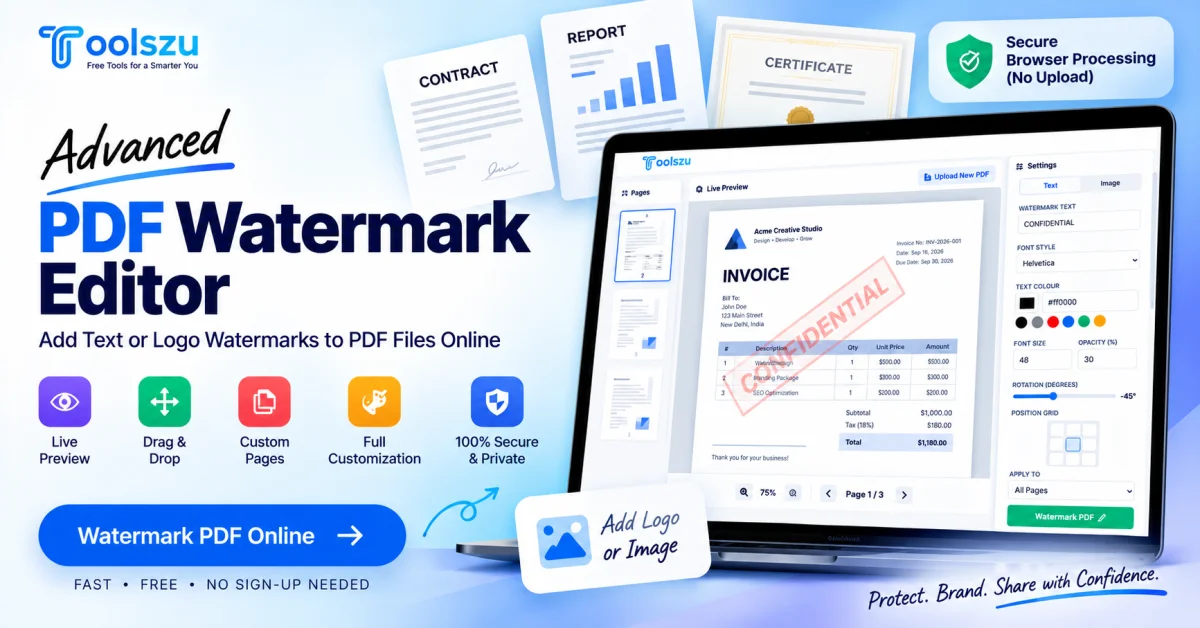
The Advanced PDF Watermark Editor from Toolszu makes PDF watermarking more flexible by combining a true live preview with visual drag-and-drop editing, text and image watermark support, customizable styling, rotation, resizing, and precise page selection. You can add a professional watermark, position it visually, choose exactly which pages should contain it, and review the result before applying the changes.
What Is an Advanced PDF Watermark Editor?
An advanced PDF watermark editor is a tool designed to add customizable text or image watermarks to PDF documents.
A basic watermark tool may simply place text in a fixed position. An advanced editor gives you much more control over the appearance and placement of the watermark.
With Toolszu's PDF watermark editor, you can work directly with a visual preview of your document and customize important settings such as:
- Watermark text
- Image or logo
- Font style
- Text color
- Font size
- Opacity
- Rotation
- Position
- Page selection
- Watermark size
This makes the tool useful for both simple document labeling and more professional branding or document-protection workflows.
Why Add a Watermark to a PDF?
A watermark can serve several purposes depending on the type of document you're sharing.
Protect Intellectual Property
Creators, publishers, designers, educators, and businesses can use watermarks to identify the source of their documents.
For example, a PDF containing original research, an ebook, presentation, design preview, or business material can include a company name, author name, copyright notice, or website.
A watermark does not provide complete copy protection, but it can make ownership and document origin immediately visible.
Mark Confidential Documents
Watermarks are particularly useful for sensitive documents.
Labels such as CONFIDENTIAL, INTERNAL USE ONLY, or DRAFT can communicate the status of a document before someone reads the content.
This can be helpful for business reports, proposals, financial documents, contracts, internal communications, and client materials.
Strengthen Business Branding
A company logo or branded text can turn an ordinary PDF into a more recognizable business document.
Businesses can add their logo, company name, website, or other branding elements to reports, brochures, proposals, and downloadable resources.
Indicate Document Status
A watermark can make the status of a document immediately clear.
For example:
- DRAFT — document is still being edited
- CONFIDENTIAL — document contains restricted information
- SAMPLE — document is provided for demonstration
- APPROVED — document has been reviewed
- COPY — identifies a duplicate or reference version
Key Features of the Advanced PDF Watermark Editor
The biggest advantage of an advanced watermark editor is control. Instead of applying a generic watermark and hoping it looks right, you can customize and preview it before finalizing the PDF.
True Live Preview
The editor provides a true live preview of the PDF while you're working.
You can see the watermark directly over your document and make adjustments without repeatedly downloading different versions.
This is especially useful when working with documents containing tables, images, headers, signatures, or other important elements.
Visual Drag-and-Drop Editing
The watermark can be positioned visually using drag-and-drop controls.
Instead of manually entering coordinates, you can move the watermark directly on the PDF preview. You can also resize it to achieve the right visual balance.
This makes positioning much easier, particularly for users who don't have experience with PDF editing software.
Add Text Watermarks
You can create a custom text watermark directly from the editor.
Common examples include:
- CONFIDENTIAL
- DRAFT
- SAMPLE
- COPYRIGHT
- COMPANY NAME
- INTERNAL USE ONLY
You can enter the wording that fits your document and then customize its appearance.
Add Image or Logo Watermarks
The editor also supports an Image watermark option.
This allows businesses and creators to use a company logo or another suitable image as a watermark instead of relying only on text.
Logo watermarks can be useful for branded reports, presentations, marketing materials, ebooks, certificates, and other professional PDFs.
Customize the Font
Text watermarks can be customized using the available font-style settings.
Choosing an appropriate font helps the watermark match the overall appearance and purpose of your document.
For example, a simple professional font can work well for business documents, while a larger bold style may be more suitable for a prominent CONFIDENTIAL or DRAFT label.
Change Text Color
You can customize the watermark's text color using the color controls in the editor.
The interface also provides a HEX color field and preset color options, giving you flexibility when matching a watermark to your brand or document design.
Adjust Font Size
The font-size control allows you to determine how large the watermark appears.
A smaller size may work better for subtle branding, while a larger size can be useful for document-status labels such as CONFIDENTIAL or DRAFT.
Control Watermark Opacity
Opacity is one of the most useful watermark settings.
A watermark that is completely opaque can interfere with the original content. By reducing its opacity, you can make the watermark visible while keeping the document underneath readable.
For example, a light, semi-transparent watermark can work well across the center of a page.
Rotate the Watermark
The editor includes a rotation control that lets you change the angle of the watermark.
Diagonal watermarks are commonly used for labels such as “CONFIDENTIAL,” “DRAFT,” and “SAMPLE.”
You can adjust the rotation rather than being limited to a fixed horizontal orientation.
Resize the Watermark Visually
You can resize the watermark directly within the preview.
This is useful because the ideal watermark size depends on the PDF layout. A size that works well on a simple document may cover important information on a report containing tables or images.
Visual resizing lets you find the right balance before applying the final watermark.
Position Your Watermark Precisely
Toolszu provides a 3×3 position grid with nine predefined placement options.
These include:
- Top-left
- Top-center
- Top-right
- Middle-left
- Center
- Middle-right
- Bottom-left
- Bottom-center
- Bottom-right
This gives you a quick starting position.
You can then use the visual editing controls to fine-tune the placement according to the actual PDF layout.
For users who want complete visual control, this combination of predefined positioning and drag-and-drop editing makes watermark placement much easier.
Apply Watermarks to Specific PDF Pages
You don't always need to watermark every page.
The editor provides an Apply To option with several page-selection choices:
All Pages
Apply the watermark across the complete PDF.
This is useful for documents where every page needs branding, copyright information, or a confidentiality label.
First Page
Apply the watermark only to the first page.
This can be useful when the cover or opening page needs special identification.
Last Page
Watermark only the final page of the PDF.
Odd Pages
Apply the watermark to odd-numbered pages.
Even Pages
Apply the watermark to even-numbered pages.
Custom Range
Choose a specific range of pages.
For example, if you only want a watermark on pages 2 through 5, a custom range gives you more control without modifying the rest of the document.
This page-selection flexibility is particularly useful when working with long PDFs.
Navigate and Review Multi-Page PDFs
The editor includes a page sidebar with thumbnails, making it easier to understand the structure of your document.
You can select pages from the thumbnail area and navigate through the PDF using the page controls.
The live preview also provides page navigation and a page counter, so you can review different parts of the document while editing.
Zoom In and Out for Better Accuracy
Precise watermark placement can be difficult when viewing an entire page at once.
The editor includes zoom controls that allow you to increase or decrease the preview size.
Zooming in can help when you need to position a watermark around tables, images, signatures, or other areas where accuracy matters.
How to Watermark a PDF Online
Adding a watermark doesn't require complicated PDF editing software.
Step 1: Upload Your PDF
Open the Advanced PDF Watermark Editor and upload your PDF file.
You can start by dragging and dropping the document or using the upload option.
Step 2: Choose Text or Image
Select whether you want to create a text watermark or use an image/logo.
For a simple document-status label, text is usually sufficient. For branding, an image or company logo may be more appropriate.
Step 3: Customize the Watermark
Adjust the available settings, including:
- Font
- Color
- Font size
- Opacity
- Rotation
- Position
Step 4: Position and Resize It
Use the live preview to drag the watermark into the desired location.
Resize it if necessary and check that important PDF content remains readable.
Step 5: Select the Pages
Choose whether to apply the watermark to:
- All pages
- First page
- Last page
- Odd pages
- Even pages
- Custom page range
Step 6: Review and Apply
Use the live preview to check your document before clicking the watermark button.
Once everything looks correct, apply the watermark and generate your finished PDF.
Is PDF Watermarking Secure?
Privacy is an important consideration when working with sensitive documents.
Toolszu's watermark editor is designed around browser-based processing, with the tool stating that files are processed locally in the browser rather than uploaded to its servers.
This approach can be useful when working with documents where users want to minimize unnecessary file transfers.
However, users should always follow their organization's document-security policies when handling highly sensitive information.
When Should You Use a PDF Watermark?
Watermarking can be useful in many everyday situations.
Businesses can watermark proposals, reports, contracts, and internal documents.
Freelancers can mark client previews as “DRAFT” or “SAMPLE” before final delivery.
Designers can protect previews of creative work with their name or logo.
Authors can add copyright or branding information to ebooks and guides.
Educators can identify course materials and educational resources.
Real estate professionals can add agency branding to property documents.
Organizations can use “CONFIDENTIAL” or “INTERNAL USE ONLY” labels on restricted documents.
Watermarking and PDF Compression
Watermarking and compression solve different PDF problems.
A watermark adds identification, branding, or document-status information. Compression, on the other hand, reduces the file size of a PDF.
If your finished PDF is too large to email or upload, you can compress a PDF without losing quality after completing your watermarking workflow.
Using both tools can make a PDF easier to identify and easier to share.
Tips for Creating a Professional Watermark
A good watermark should be noticeable without making the document difficult to read.
Keep the Wording Short
Use concise text. “CONFIDENTIAL” is usually more effective than a long sentence covering the page.
Use Moderate Opacity
A semi-transparent watermark can provide identification while allowing the original content to remain visible.
Avoid Important Content
Don't position the watermark directly over signatures, important figures, tables, or critical text unless that is intentional.
Choose the Right Size
Large watermarks can dominate the document. Start with a reasonable size and adjust it using the live preview.
Match the Watermark to Its Purpose
A business logo may work well for branding, while a diagonal “CONFIDENTIAL” label may be more appropriate for sensitive documents.
Frequently Asked Questions
Can I add a text watermark to a PDF online?
Yes. You can add custom text to a PDF and customize its font, color, size, opacity, rotation, and position using the Advanced PDF Watermark Editor.
Can I use my company logo as a PDF watermark?
Yes. The editor provides an image watermark option, allowing you to use a logo or other suitable image as a watermark.
Can I watermark only selected PDF pages?
Yes. You can choose all pages, the first page, last page, odd pages, even pages, or a custom page range.
Can I move the watermark after adding it?
Yes. The editor provides visual drag-and-drop controls, allowing you to move and resize the watermark directly within the live PDF preview.
Can I make a PDF watermark transparent?
Yes. You can adjust the watermark's opacity to make it more subtle and reduce interference with the original PDF content.
Can I rotate a PDF watermark?
Yes. The editor includes a rotation control that lets you adjust the watermark angle, making diagonal watermark designs possible.
Conclusion
A professional watermark should do more than simply place text over a PDF. It should give you control over what the watermark says, how it looks, where it appears, and which pages contain it.
Toolszu's Advanced PDF Watermark Editor brings these controls together with a true live preview, visual drag-and-drop editing, text and image watermark support, font and color customization, opacity and rotation controls, a 9-position grid, zoom tools, and flexible page selection.
Whether you're labeling a confidential business document, adding your company logo, marking a PDF as a draft, or protecting creative content with branding, you can add a customizable watermark to your PDF online and review the result before applying it.
Also Read

Jitendra
Content Writer
Jitendra creates clear and informative content at Toolszu, covering technology, online tools, and digital productivity. He enjoys simplifying complex topics and turning them into practical, easy-to-follow resources.