
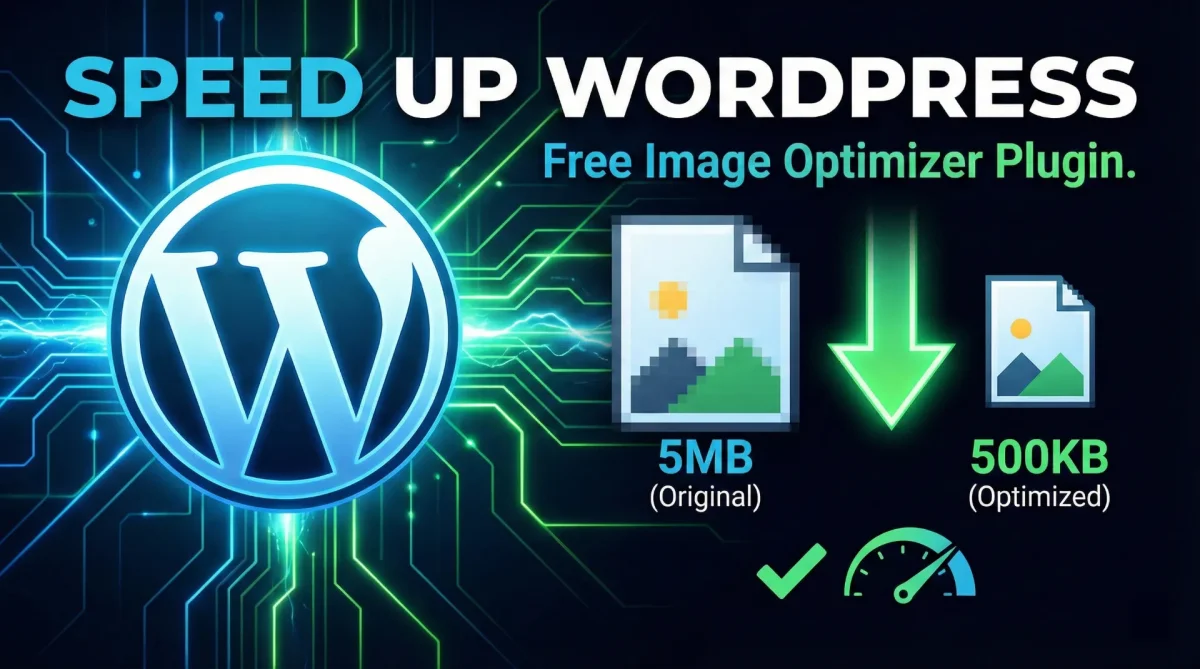
Free WordPress Image Optimizer Plugin: Compress Images Without Losing Quality
Table of Contents
- Why Image Optimization Matters for WordPress
- What a Good Free Image Optimizer Plugin Should Offer
- How the Toolszu Image Optimizer Helps
- Step-by-Step: How to Use a Free Image Optimizer Plugin
- Image Optimization and SEO
- Free vs Paid Image Optimizer Plugins
- Best Practices for Image Performance
- Frequently Asked Questions (FAQ)
- Conclusion
Website speed is no longer optional. Large, unoptimized images are one of the biggest reasons WordPress sites load slowly, hurt user experience, and rank lower in search results. If your pages feel heavy or your Core Web Vitals are failing, images are often the culprit. The solution? A reliable, free WordPress image optimizer plugin that compresses images automatically—without ruining quality. In this guide, you’ll learn why image optimization matters, what features to look for, and how to use a free plugin to improve performance the right way.
Why Image Optimization Matters for WordPress
Images make content engaging, but they also increase page size. A single high-resolution image from a phone can easily exceed 3–5 MB. Multiply that across a blog post or product page, and your website becomes slow.
Slow websites lead to:
-
Higher bounce rates
-
Lower conversion rates
-
Poor mobile experience
-
Reduced search visibility
Google has clearly stated that performance is a ranking factor, especially through Core Web Vitals. You can read more about this in Google’s official guide to Core Web Vitals.
Optimizing images reduces file size while maintaining visual clarity. The result is a faster, smoother website that performs better on both desktop and mobile.
What a Good Free Image Optimizer Plugin Should Offer
Not all plugins are created equal. A high-quality free WordPress image optimizer plugin should include:
1. Lossless or Smart Compression
Compression should reduce file size without noticeable quality loss.
2. Automatic Optimization
Images should be optimized on upload, so you don’t have to process them manually.
3. Bulk Optimization
For existing websites, bulk optimization is essential.
4. WebP Support
Modern formats like WebP significantly reduce file size compared to JPEG or PNG. Google recommends next-gen formats for better performance.
5. No Watermarks or Forced Branding
Free should mean free—without hidden limitations that hurt your website’s professionalism.
How the Toolszu Image Optimizer Helps
The Toolszu Image Optimizer plugin is designed to keep things simple and effective. It focuses on performance, ease of use, and clean integration with WordPress.
Key benefits include:
-
Automatic image compression on upload
-
Support for JPEG, PNG, and WebP
-
Lightweight structure with minimal server load
-
Clean dashboard integration
-
No unnecessary upsells inside the plugin
If you also use online tools for quick compression outside WordPress, you can try the free online image compressor tool for manual optimization before uploading.
Step-by-Step: How to Use a Free Image Optimizer Plugin
Here’s how to get started:
Step 1: Install the Plugin
Go to your WordPress dashboard → Plugins → Add New → Search for the plugin → Install and Activate.
Step 2: Configure Basic Settings
Open the plugin settings and choose your compression level. Start with a balanced option if available.
Step 3: Enable Automatic Optimization
Turn on automatic optimization so every new upload is compressed instantly.
Step 4: Bulk Optimize Existing Images
Run bulk optimization once to compress your media library.
That’s it. No complex configuration needed.
Image Optimization and SEO
Image optimization does more than improve speed. It directly supports SEO.
Here’s how:
-
Faster load times improve user signals.
-
Smaller pages improve crawl efficiency.
-
WebP images improve mobile performance.
-
Optimized images reduce server strain.
Also, don’t forget to add descriptive alt text to images. This improves accessibility and helps search engines understand your content.
If you’re managing multiple visual assets, combining optimization with tools like a reliable image size reducer and converter can streamline your workflow.
Download Plugin : Toolszu Image Optimizer
Free vs Paid Image Optimizer Plugins
Many premium plugins offer advanced features like CDN integration or aggressive compression. However, for most bloggers, small businesses, and content creators, a well-built free plugin is more than enough.
Choose a paid option only if you:
-
Run a high-traffic eCommerce site
-
Need advanced server-side processing
-
Require global CDN integration
For regular websites, a clean, free plugin delivers excellent performance without recurring costs.
Best Practices for Image Performance
Even with a plugin, follow these best practices:
-
Resize images before uploading (don’t upload 4000px images if you display them at 800px).
-
Use the correct format (JPEG for photos, PNG for graphics).
-
Enable lazy loading.
-
Avoid overusing large hero images.
Image optimization works best when combined with smart content management.
Frequently Asked Questions (FAQ)
1. Does image compression reduce quality?
Not noticeably. Smart or lossless compression keeps images visually clear while reducing file size.
2. Is WebP better than JPEG?
Yes. WebP often provides better compression with similar quality, making it ideal for modern websites.
3. Will a free plugin slow down my server?
A well-coded plugin is lightweight and runs optimization efficiently without affecting performance.
4. Should I optimize old images too?
Yes. Bulk optimization helps improve overall site speed, especially for older content.
5. Is image optimization enough to fix a slow website?
It helps significantly, but you should also use caching, clean themes, and optimized hosting.
Conclusion
A fast website builds trust, improves SEO, and increases conversions. Large, unoptimized images silently slow down your WordPress site and hurt performance. Installing a reliable free WordPress image optimizer plugin is one of the simplest and most effective improvements you can make today.
If you want a lightweight, no-nonsense solution, try the Toolszu Image Optimizer and see the difference in load time and performance. Small changes in image handling can lead to big results.